Step 6 of 13
Complete your profile
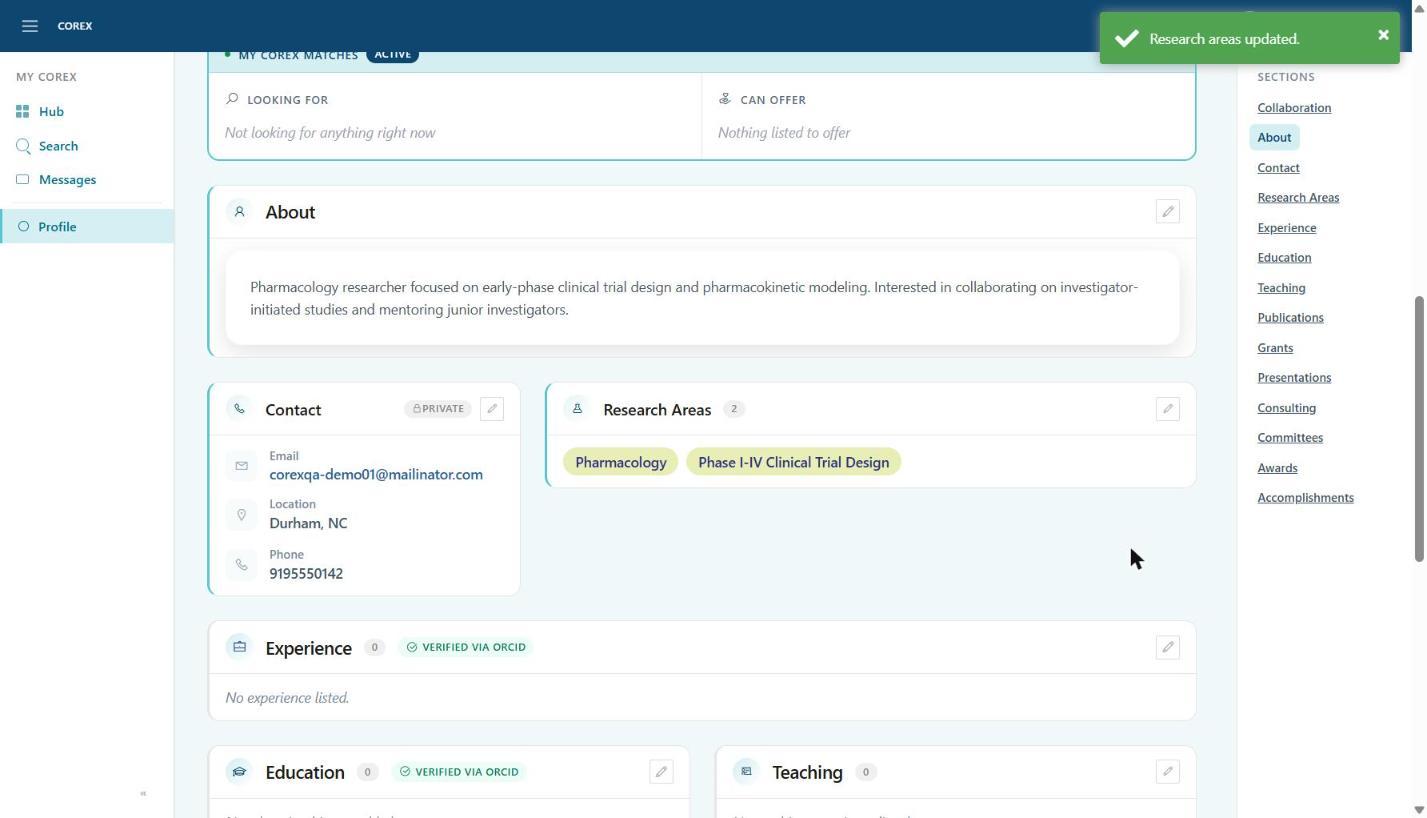
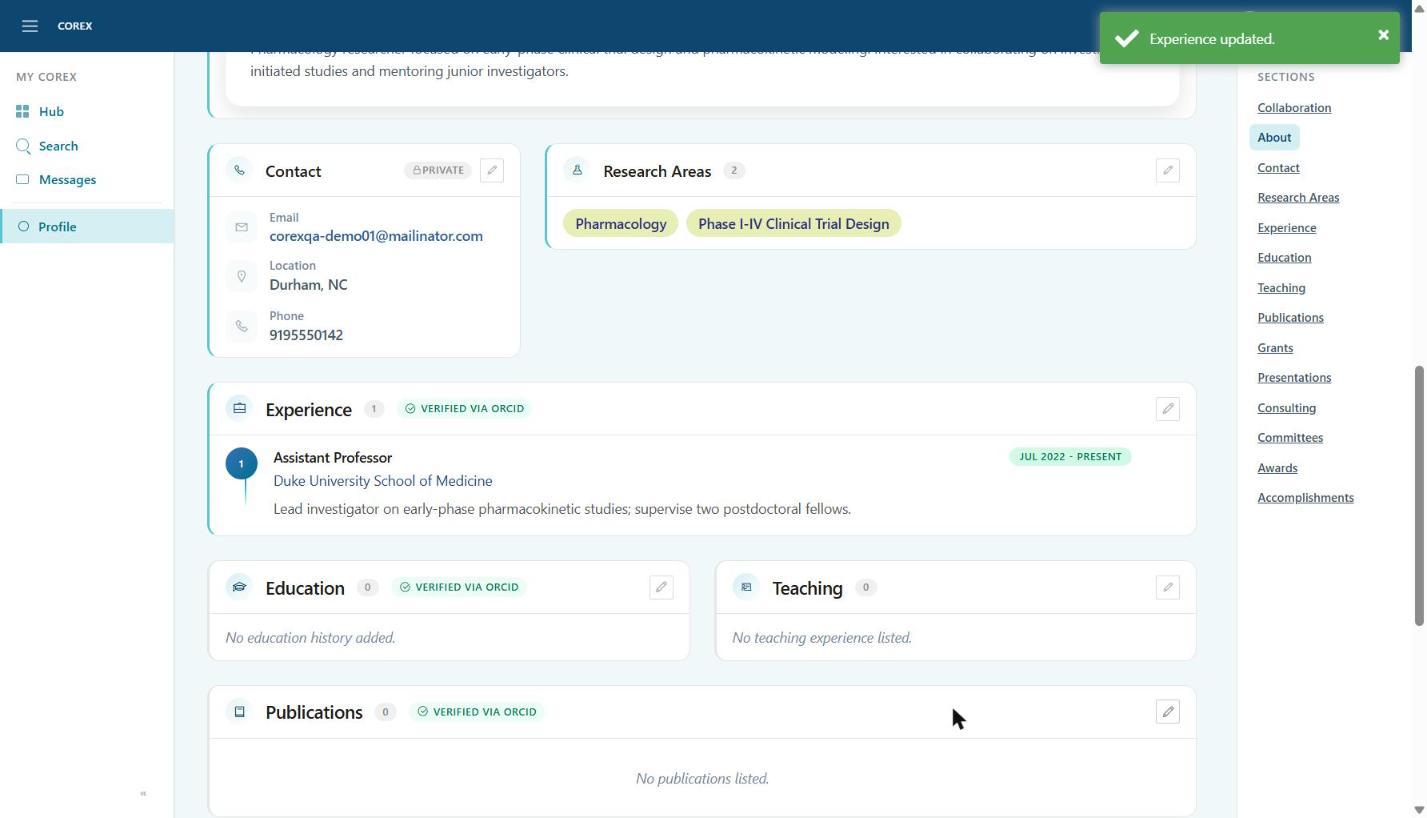
Every section on your Profile has a pencil icon in its top-right corner. Click it to edit that section. Changes save immediately and a green confirmation appears in the top right.
Identity, organization and contact
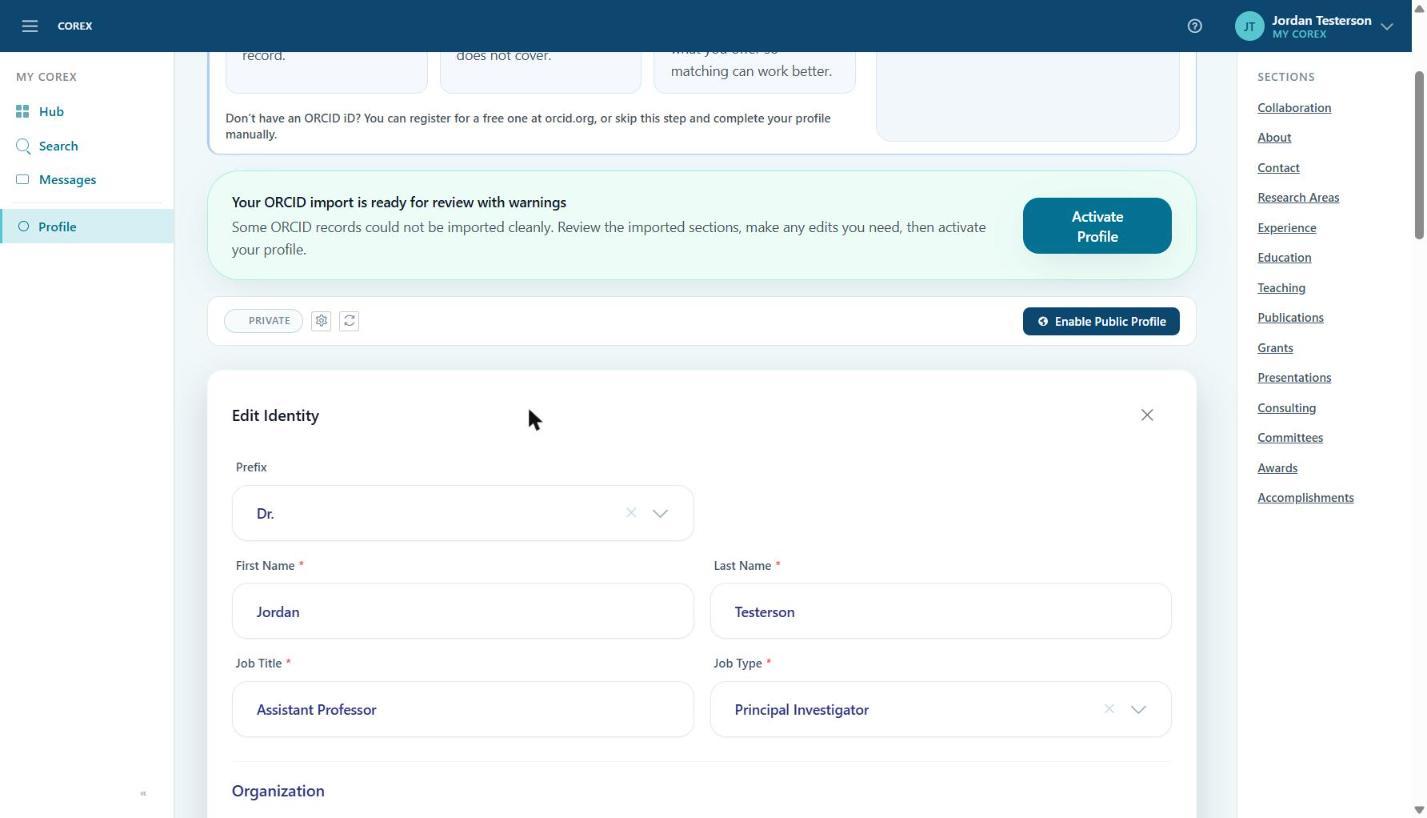
Click the pencil next to your name to open Edit Identity. This is where you change your prefix, name, job title and type, organization, credentials, phone, timezone and address — the same fields you filled in during onboarding.
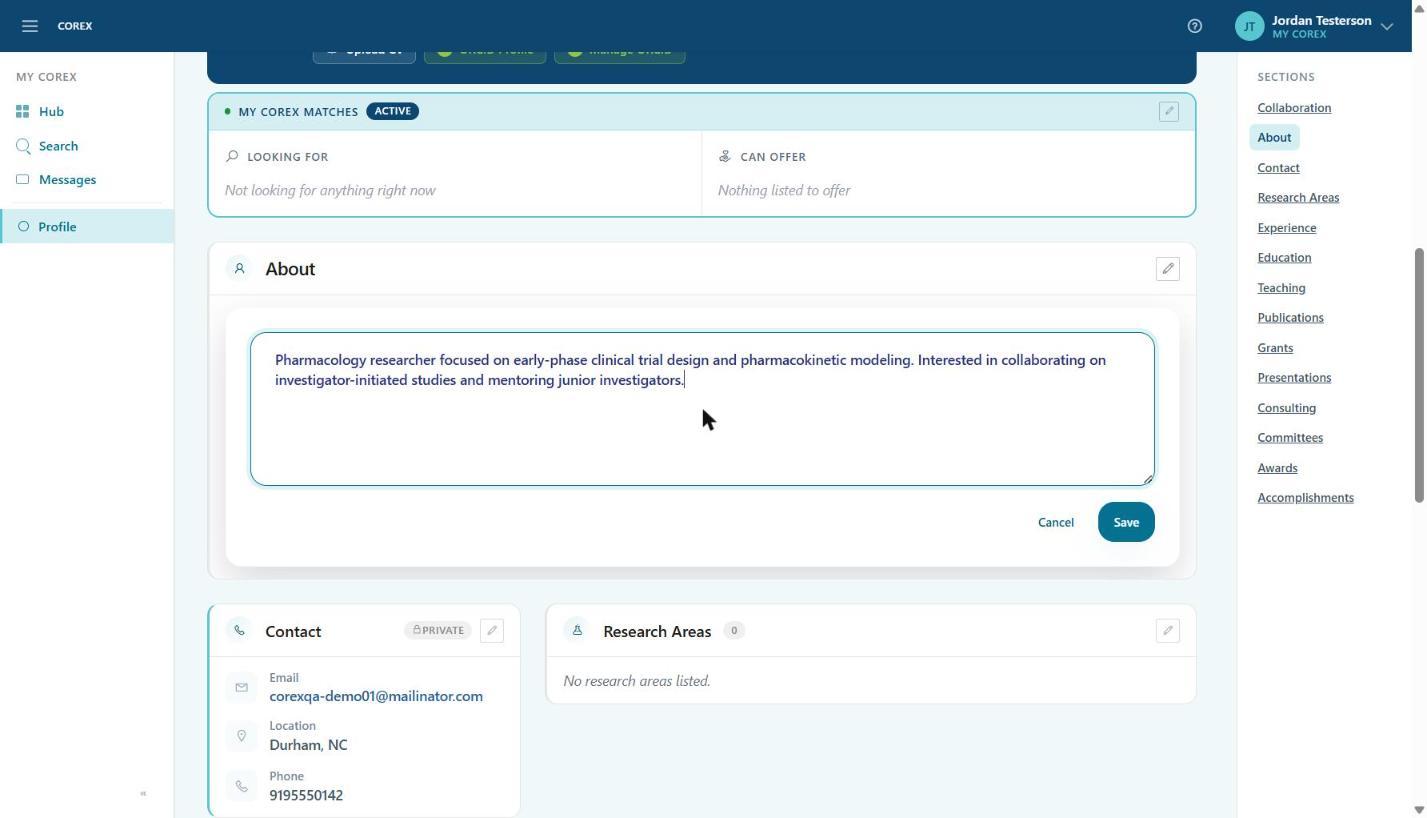
About
- 1Click the pencil on the About card.
- 2Write a short professional bio — what you research, what you're known for, and what kind of collaborations interest you.
- 3Click Save.
Research Areas
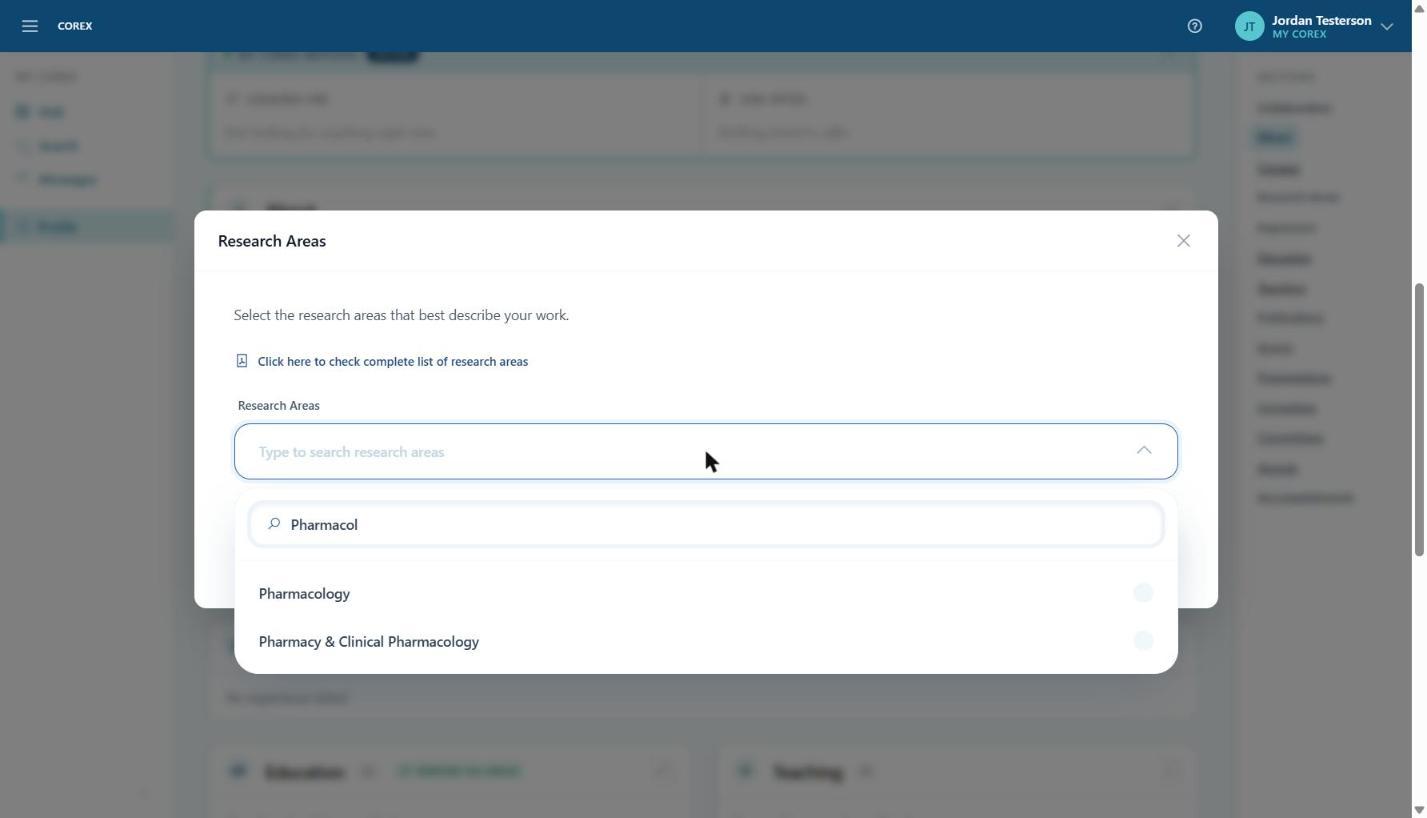
- 1Click the pencil on Research Areas.
- 2Type a keyword (for example Pharmacol or Clinical) and tick every area that applies. The counter shows how many you've selected.
- 3Click Save. Your areas appear as chips on your profile and are used for matching.
Experience, Education, Publications and more
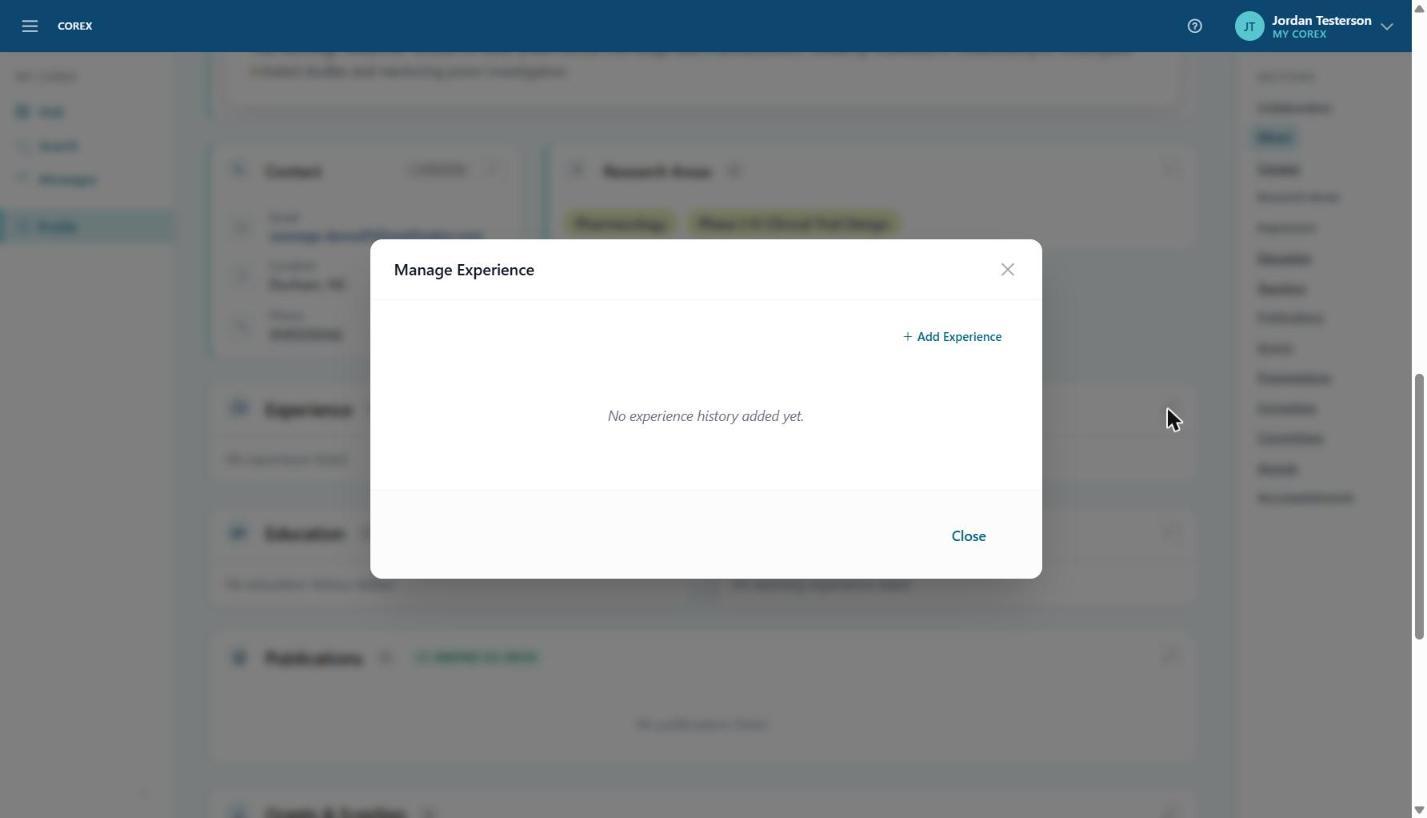
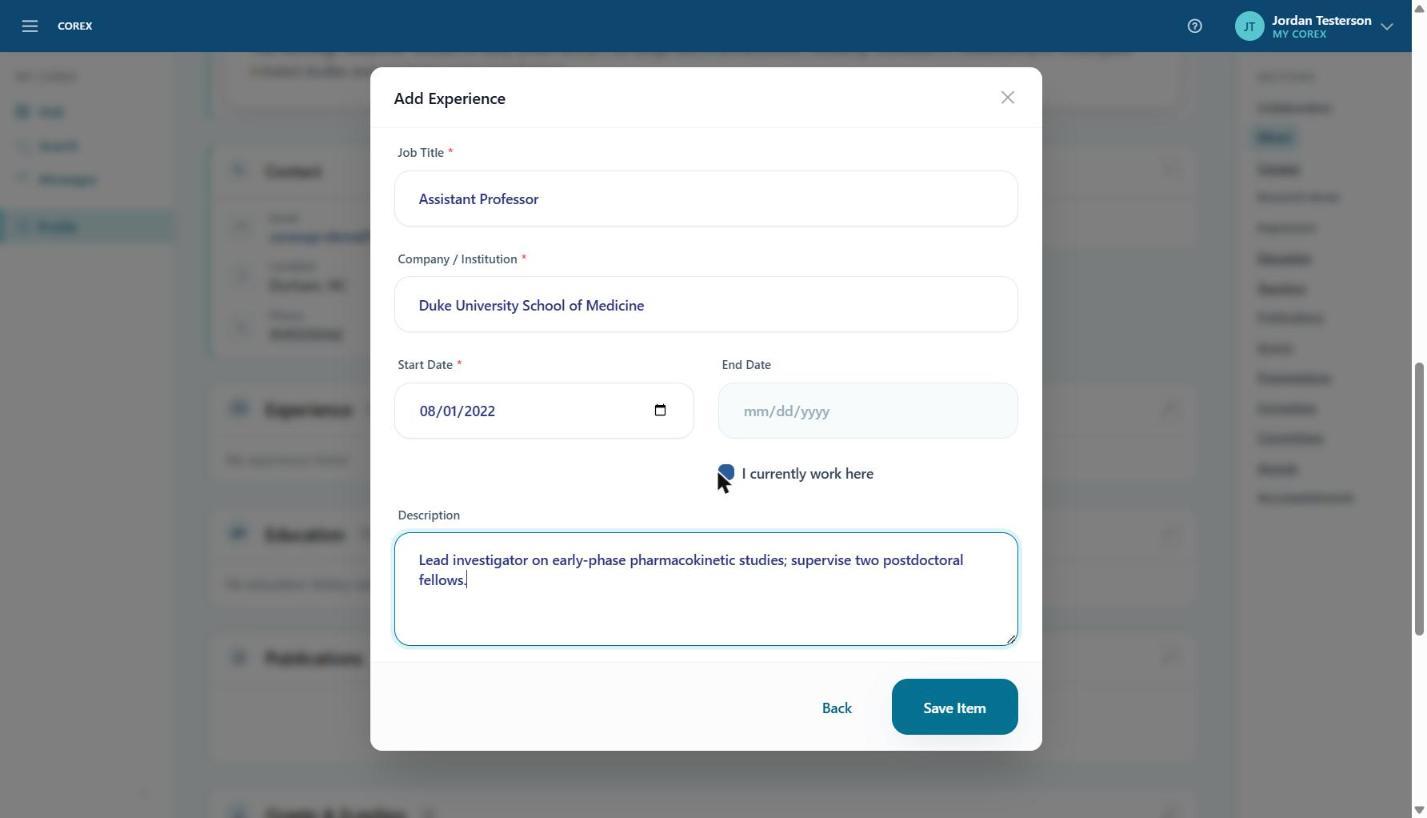
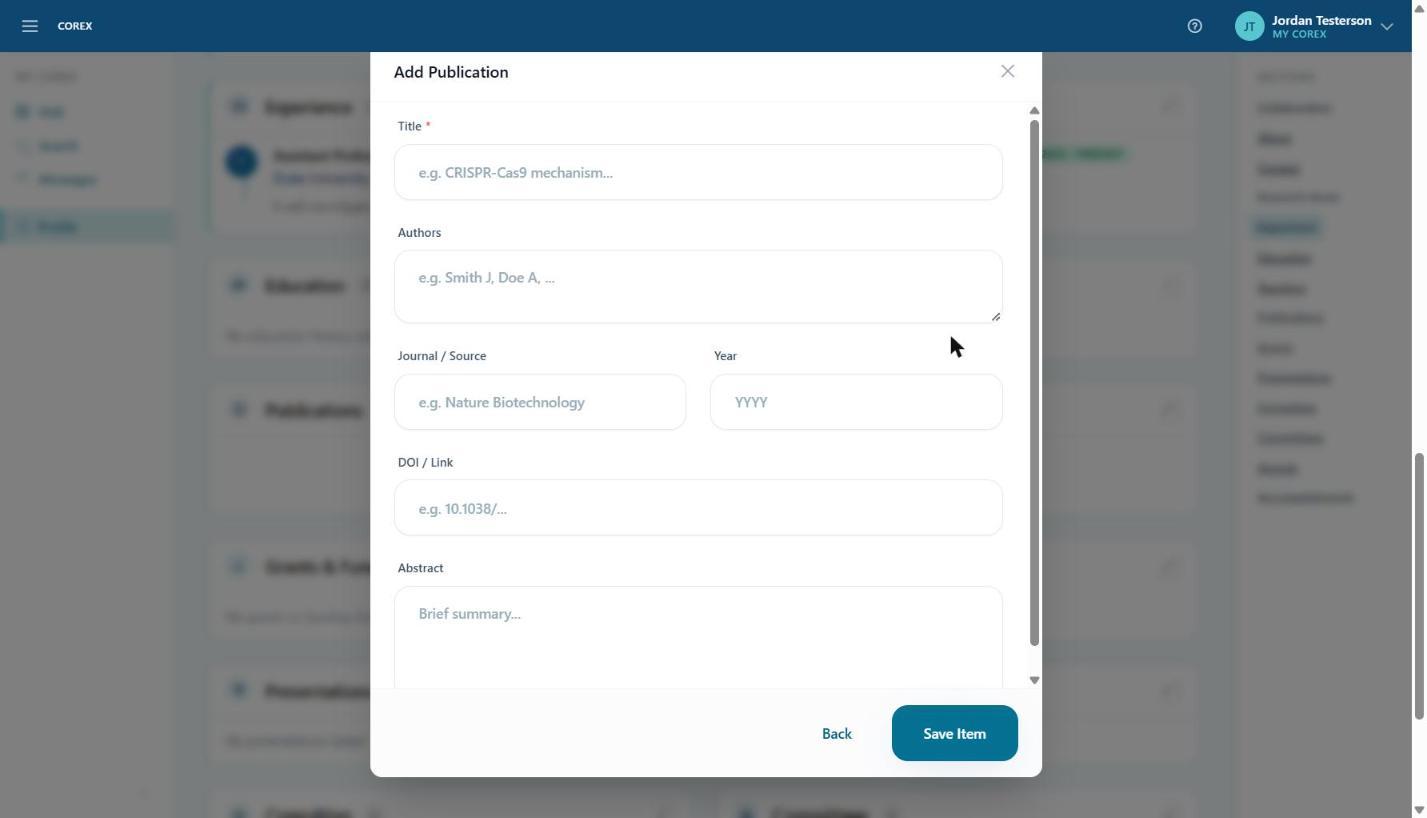
Experience, Education, Teaching, Publications, Grants & Funding, Presentations, Consulting, Committees, Awards and Accomplishments all work the same way: open the section with its pencil, click + Add …, fill in the form, and click Save Item. Items imported from ORCID are already there; add anything ORCID doesn't cover.
Upload your CV
Click Upload CV in your profile header to attach a PDF or Word CV. It's a convenient way to give collaborators the full picture without retyping everything.