Step 10 of 13
Your Hub: matches and notifications
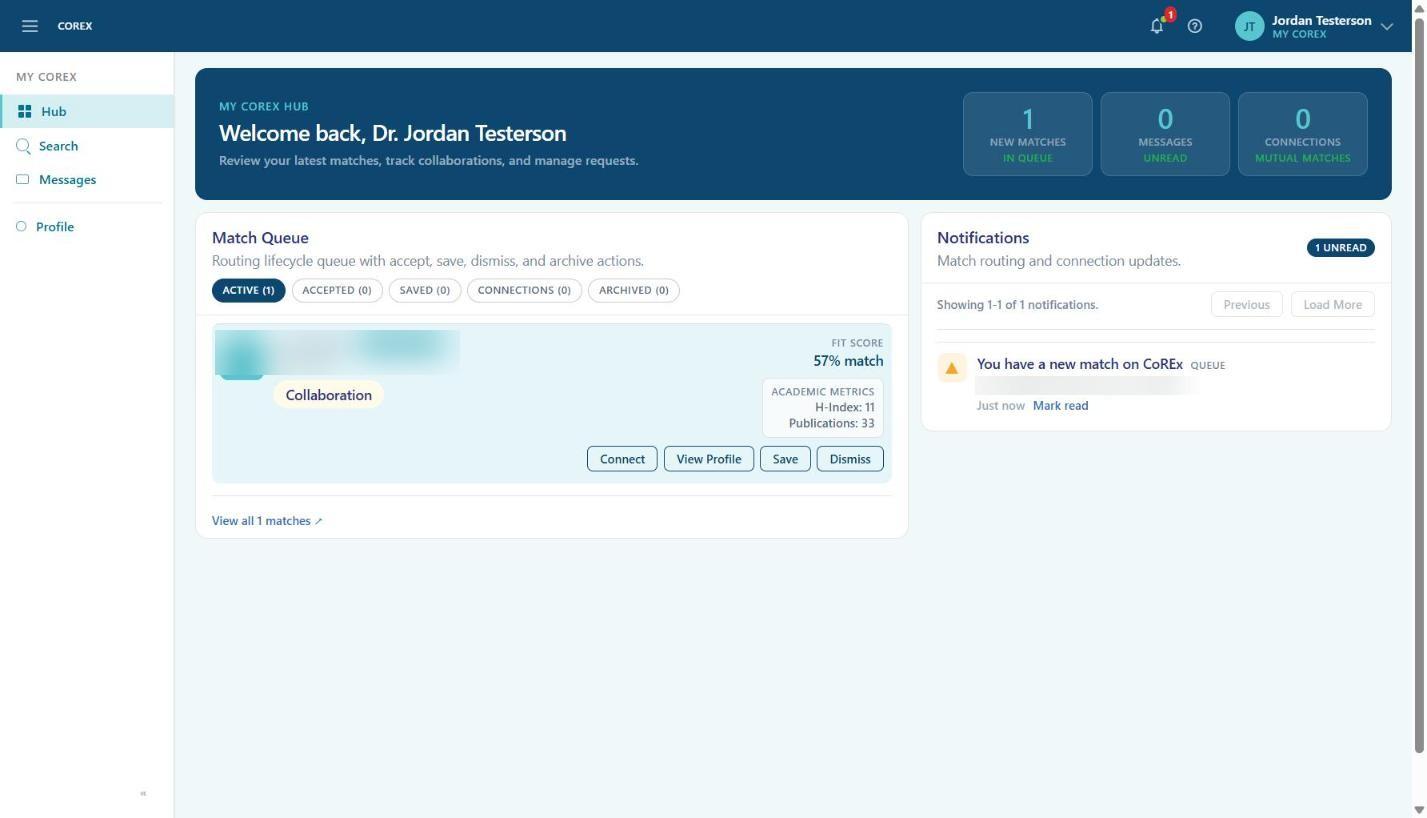
The Hub is your home page. It shows new matches, unread messages and connections at a glance, plus the Match Queue and your notifications.
Working the Match Queue
Each card shows the person's name, role, the category you matched on, a fit score, and their academic metrics. Use the buttons to decide what to do:
- View Profile — read their full profile before deciding.
- Connect — send a connection request. When both sides connect, you become a mutual match and can message each other.
- Save — keep the match for later without acting on it.
- Dismiss — remove it from your active queue.
The tabs above the queue (Active, Accepted, Saved, Connections, Archived) let you revisit matches you've acted on.
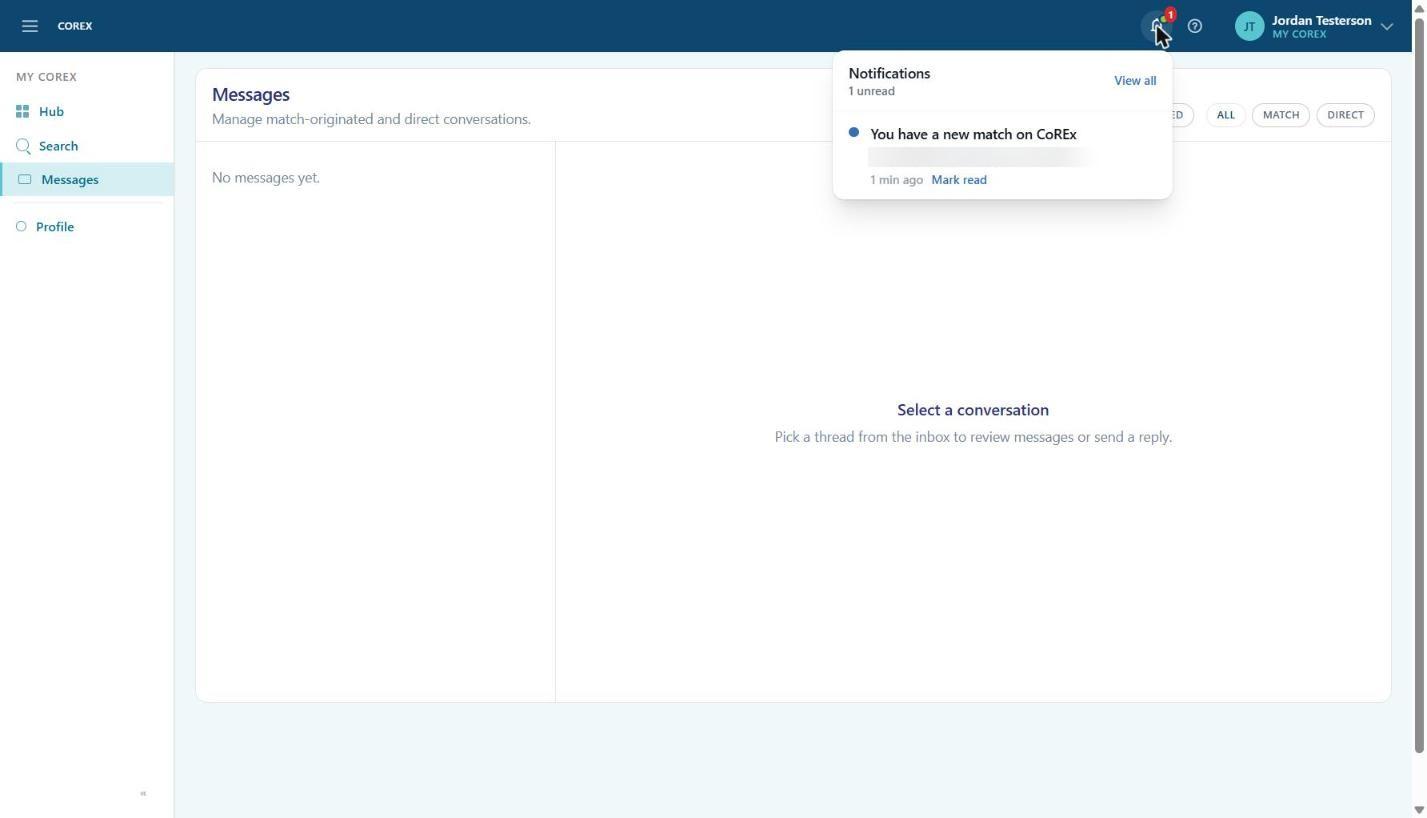
Notifications
The bell icon in the header shows unread notifications — new matches, connection updates and messages. Click Mark read on an item or View all to see the full list on the Hub.