Step 9 of 13
Share your public profile
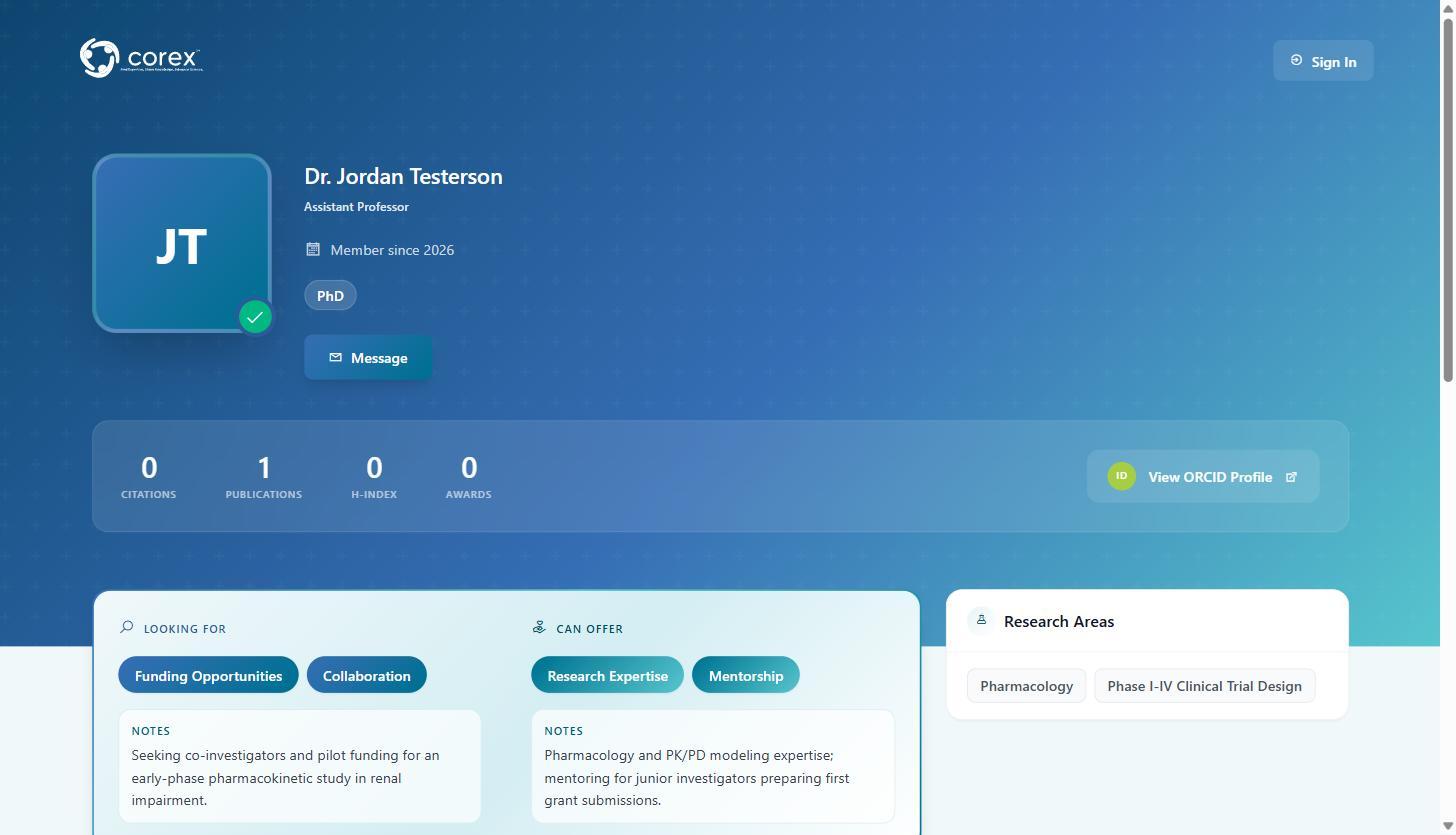
By default your profile is visible only inside Corex. Enable Public Profile gives you a clean, shareable page at a URL you choose — ideal for your email signature, LinkedIn or X bio, lab website, conference bios, and grant applications.
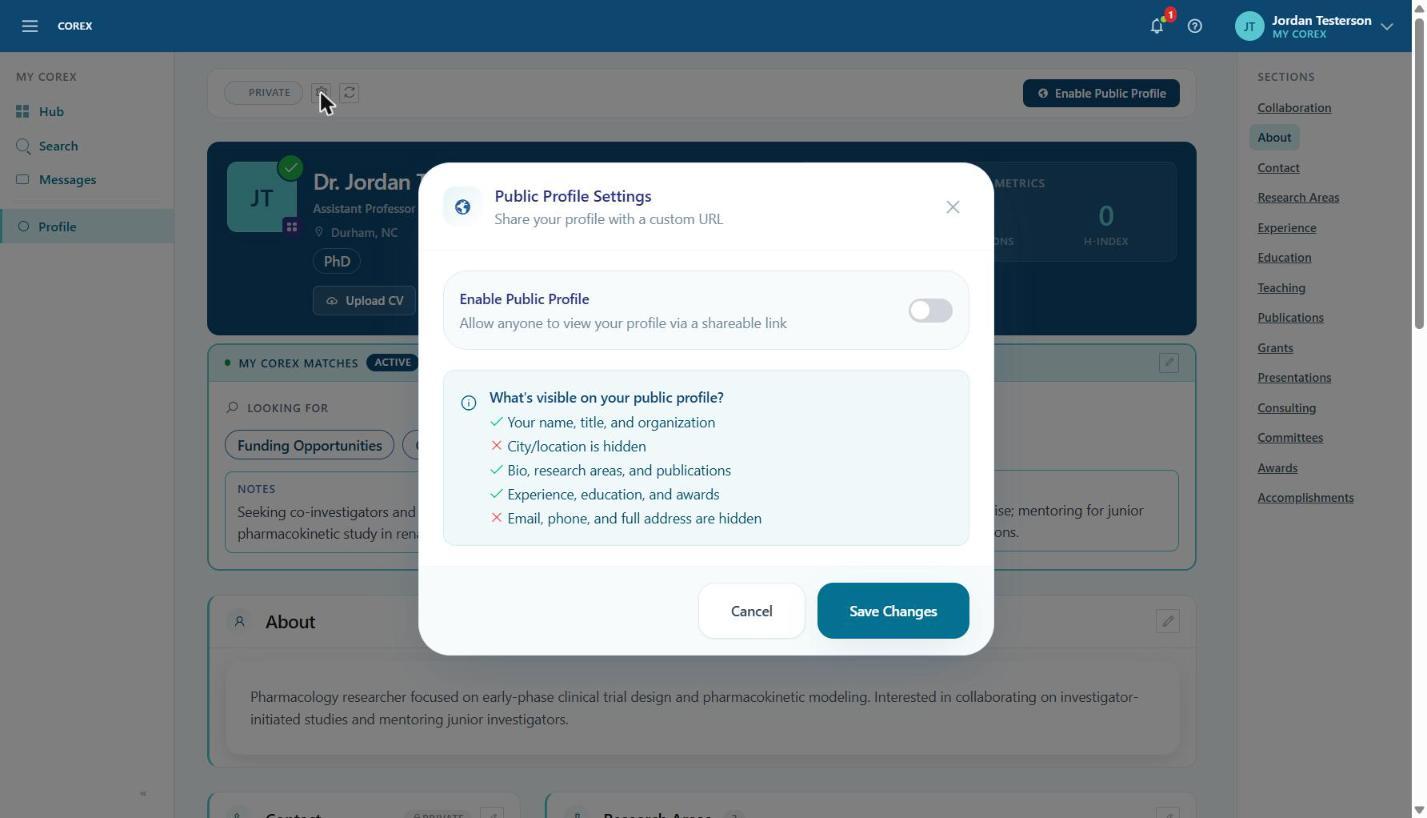
- 1On your Profile, click Enable Public Profile (or the gear icon next to the PRIVATE badge).
- 2Switch Enable Public Profile on.
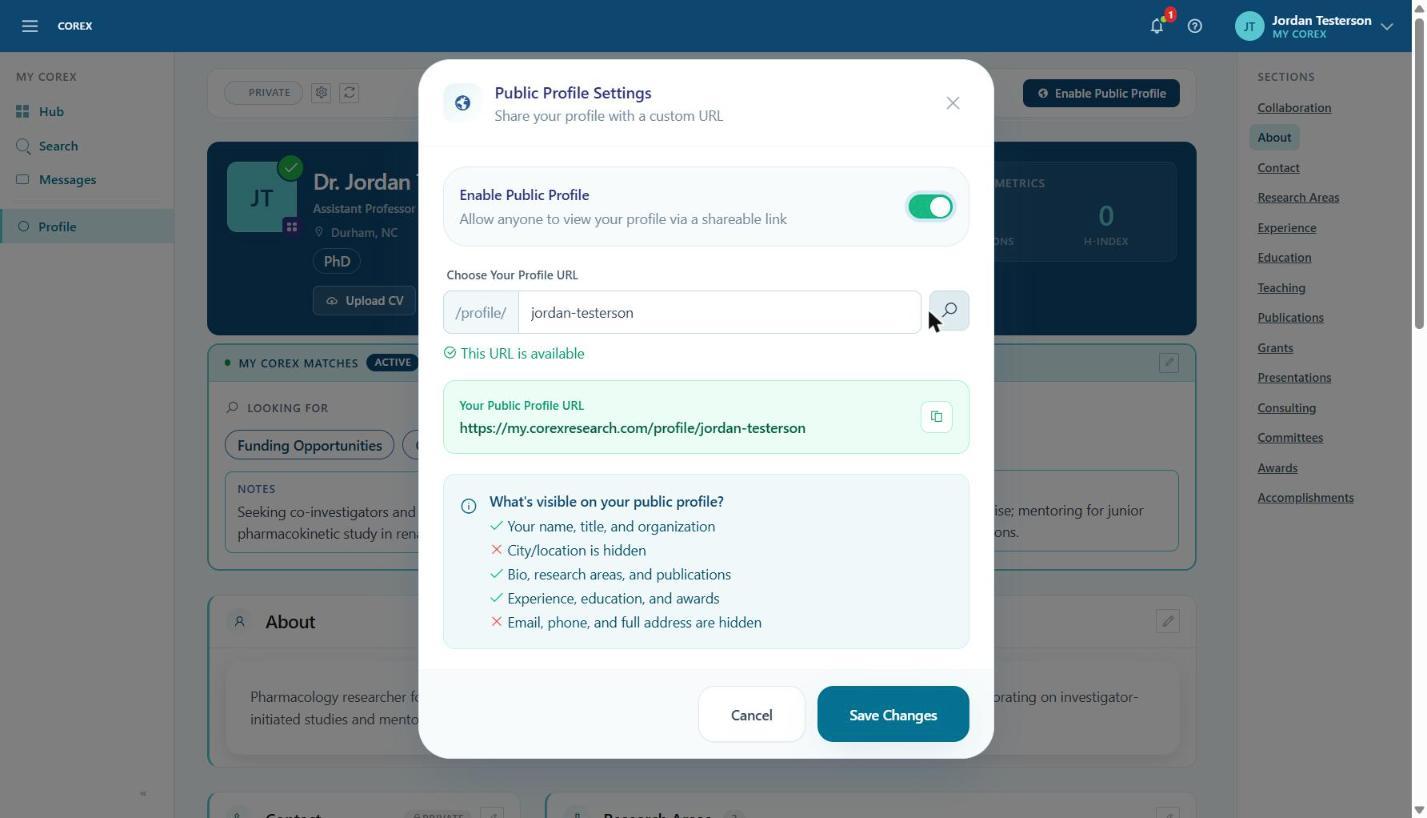
- 3Choose your profile URL. Corex suggests one from your name; edit it if you like and click the search icon to confirm it's available.
- 4Review What's visible on your public profile — name, title, organization, bio, research areas, publications, experience, education and awards are shown; your city, email, phone and address are hidden.
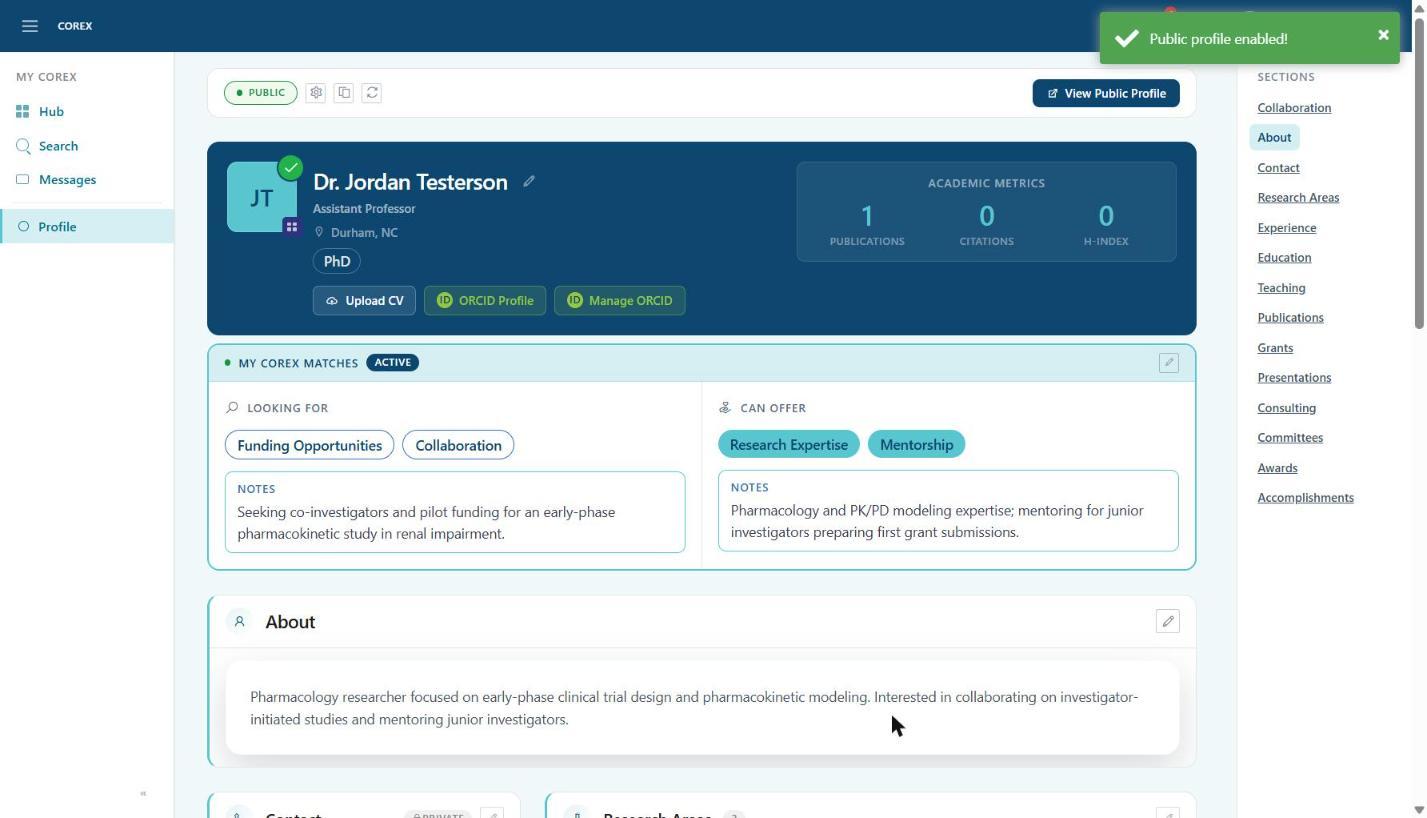
- 5Click Save Changes. The badge changes to PUBLIC and a View Public Profile button appears.
- 6Use the copy icon next to the badge to copy your link, then paste it wherever you want people to find you.