Step 7 of 13
Set what you're Seeking and Offering
This is the most important section for matching. Corex pairs what you're looking for with what other members can offer, and vice versa.
- 1Click the pencil on the My Corex Matches strip (or Seeking & Offering in the Start Here panel).
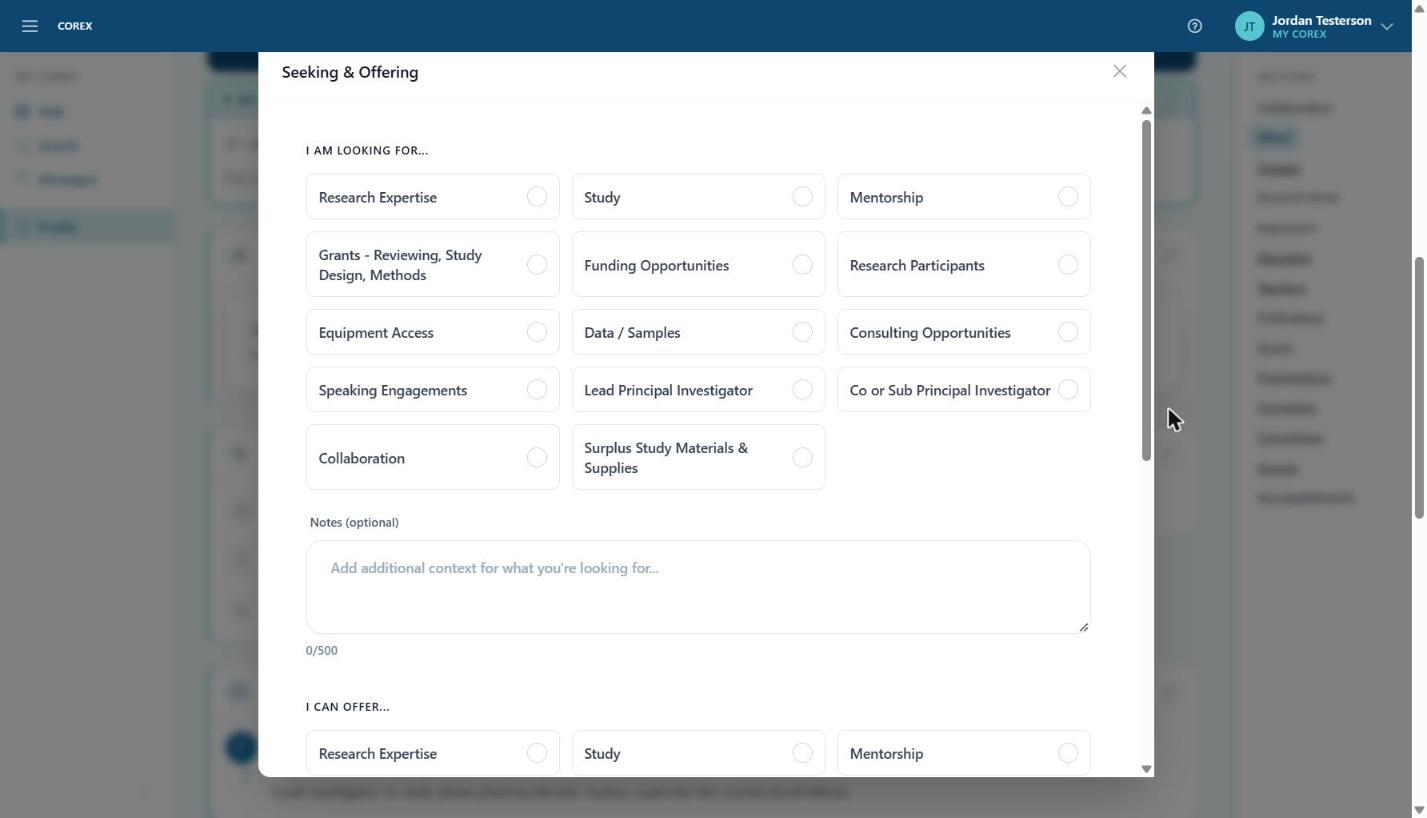
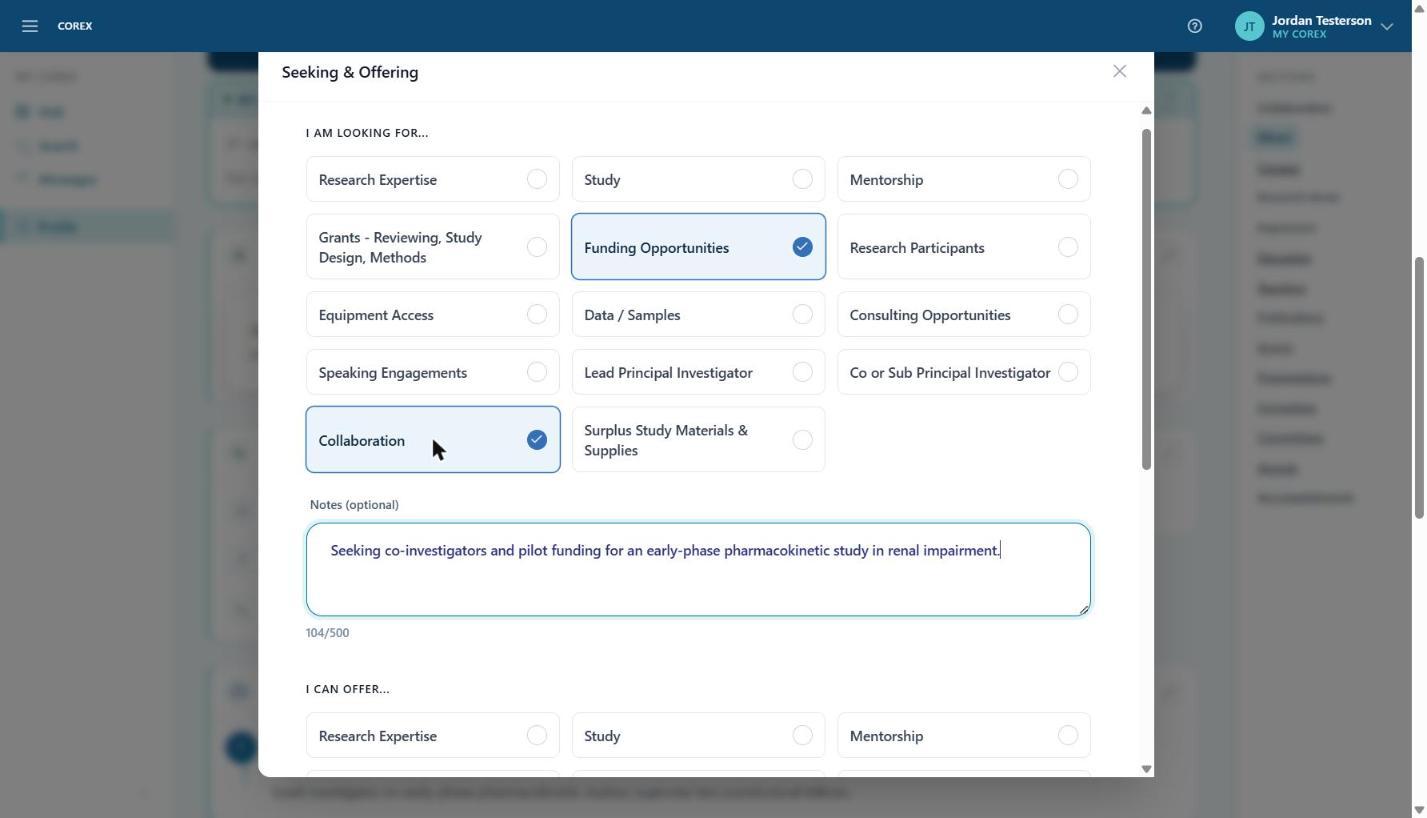
- 2Under I am looking for…, tick every option that applies — funding, collaborators, mentorship, research participants, equipment, data, speaking engagements, PI or co-PI roles, and more.
- 3Add a short Note (up to 500 characters) describing what you need. Specific notes get better matches.
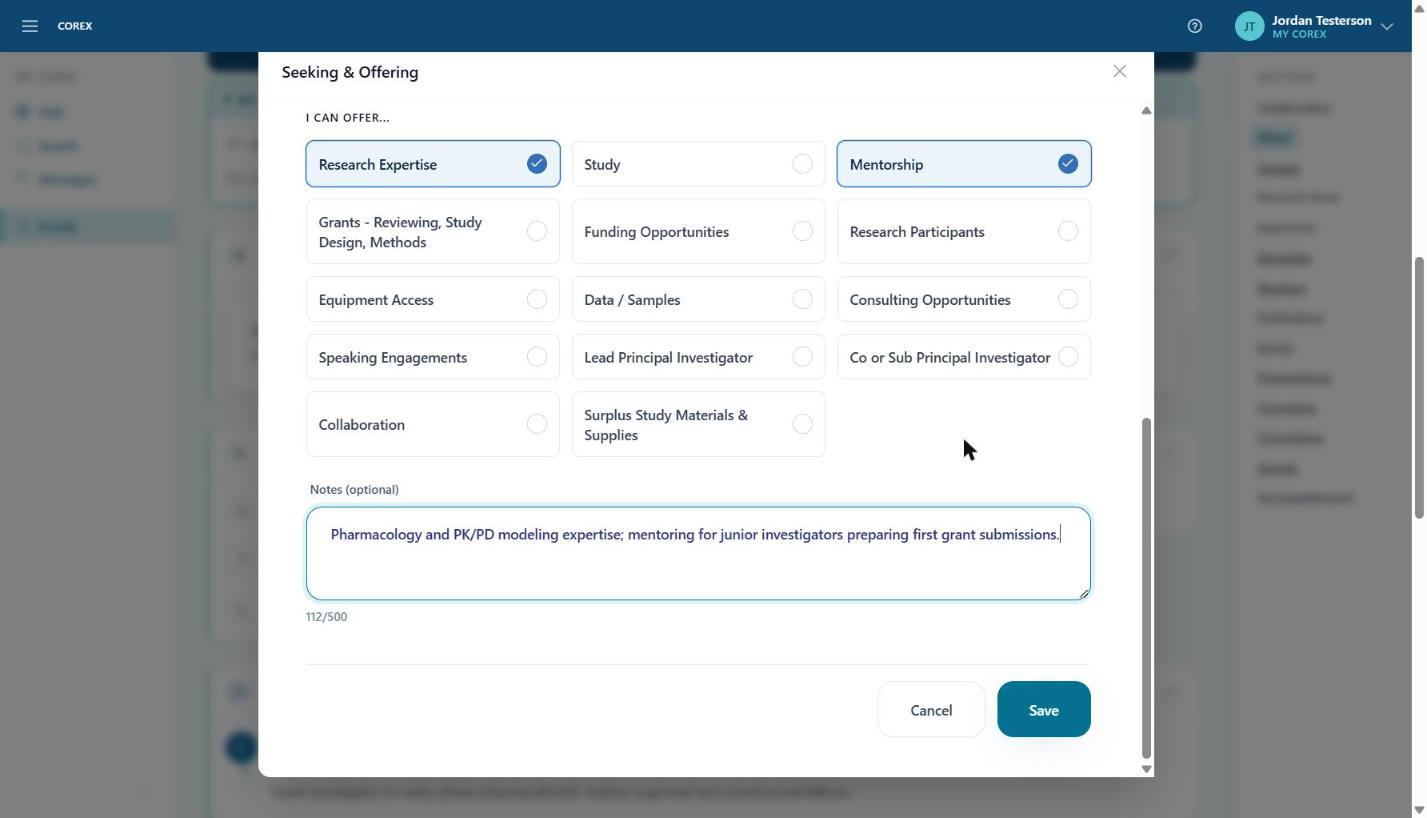
- 4Scroll to I can offer… and do the same for what you bring — expertise, mentorship, data, study sites, review capacity.
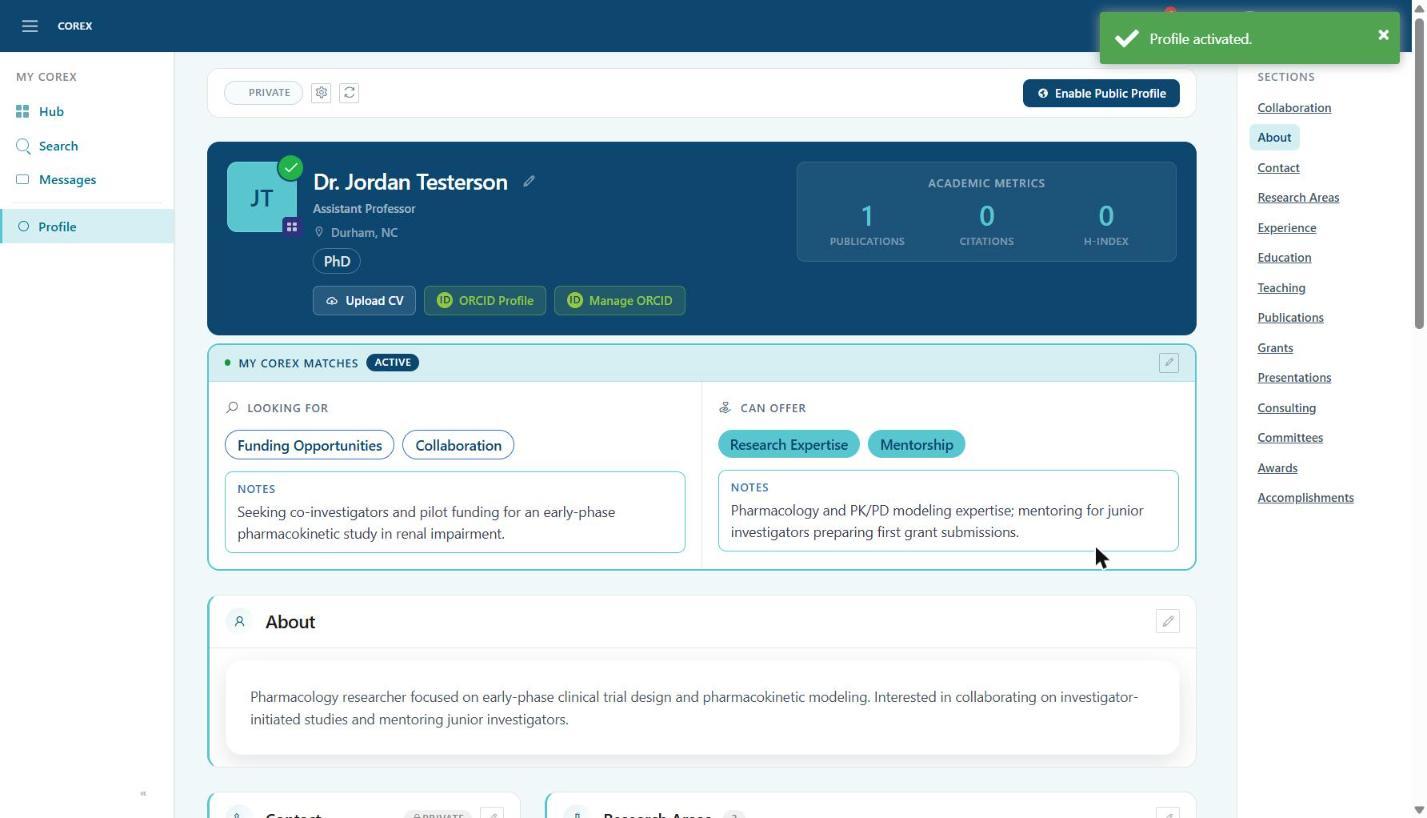
- 5Click Save. Your selections appear on your profile and Corex refreshes your matches in the background.