Step 2 of 13
Create your account
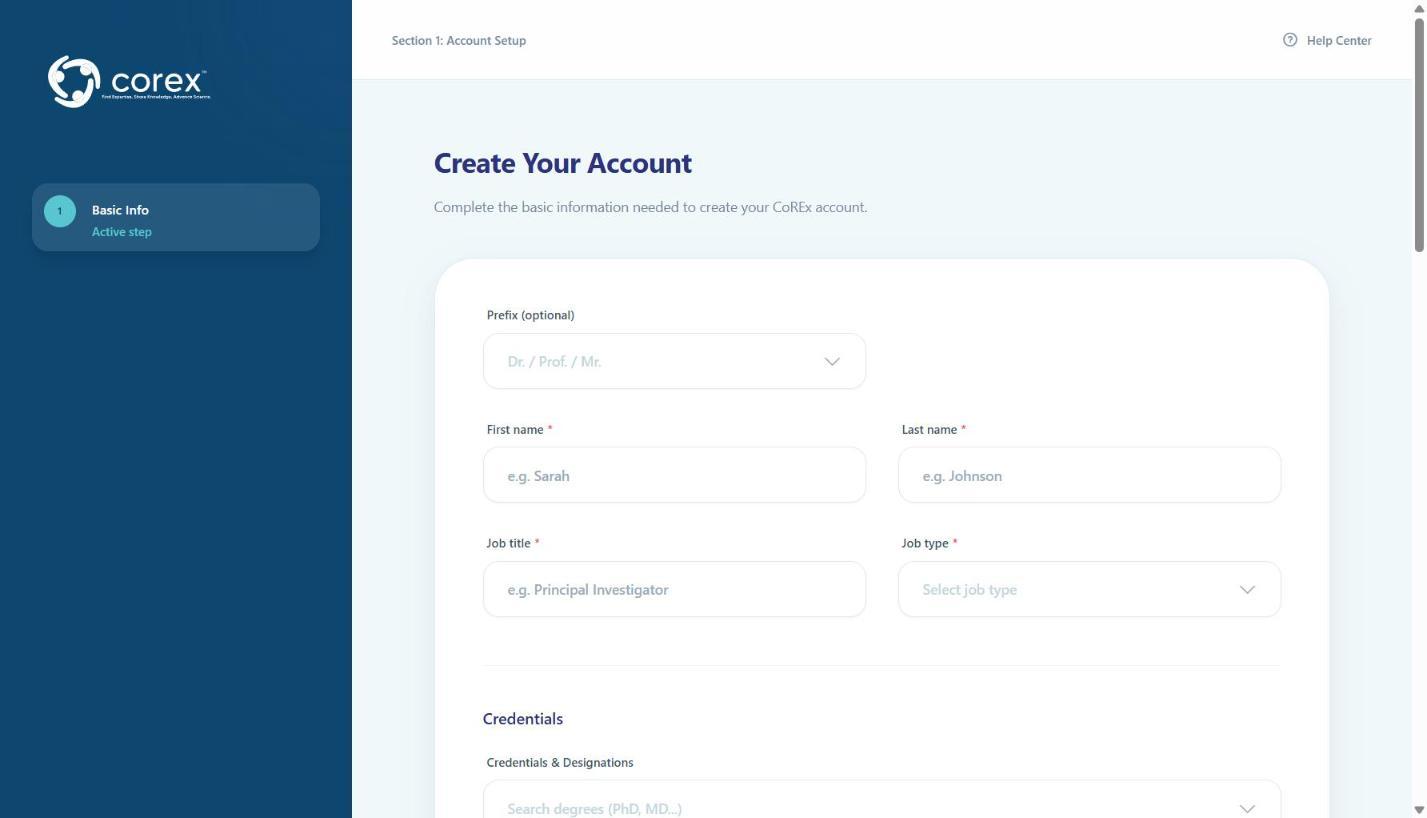
Go to https://my.corexresearch.com/onboarding/basic-info. The Create Your Account form is the only step before your account exists — there's no separate sign-up page.
Your name and role
- 1Prefix (optional) — open the list and choose Dr., Prof., Mr., Ms., etc. Type in the filter box to jump to an entry.
- 2First name and Last name — these appear on your profile exactly as typed.
- 3Job title — free text, for example Assistant Professor or Clinical Research Coordinator.
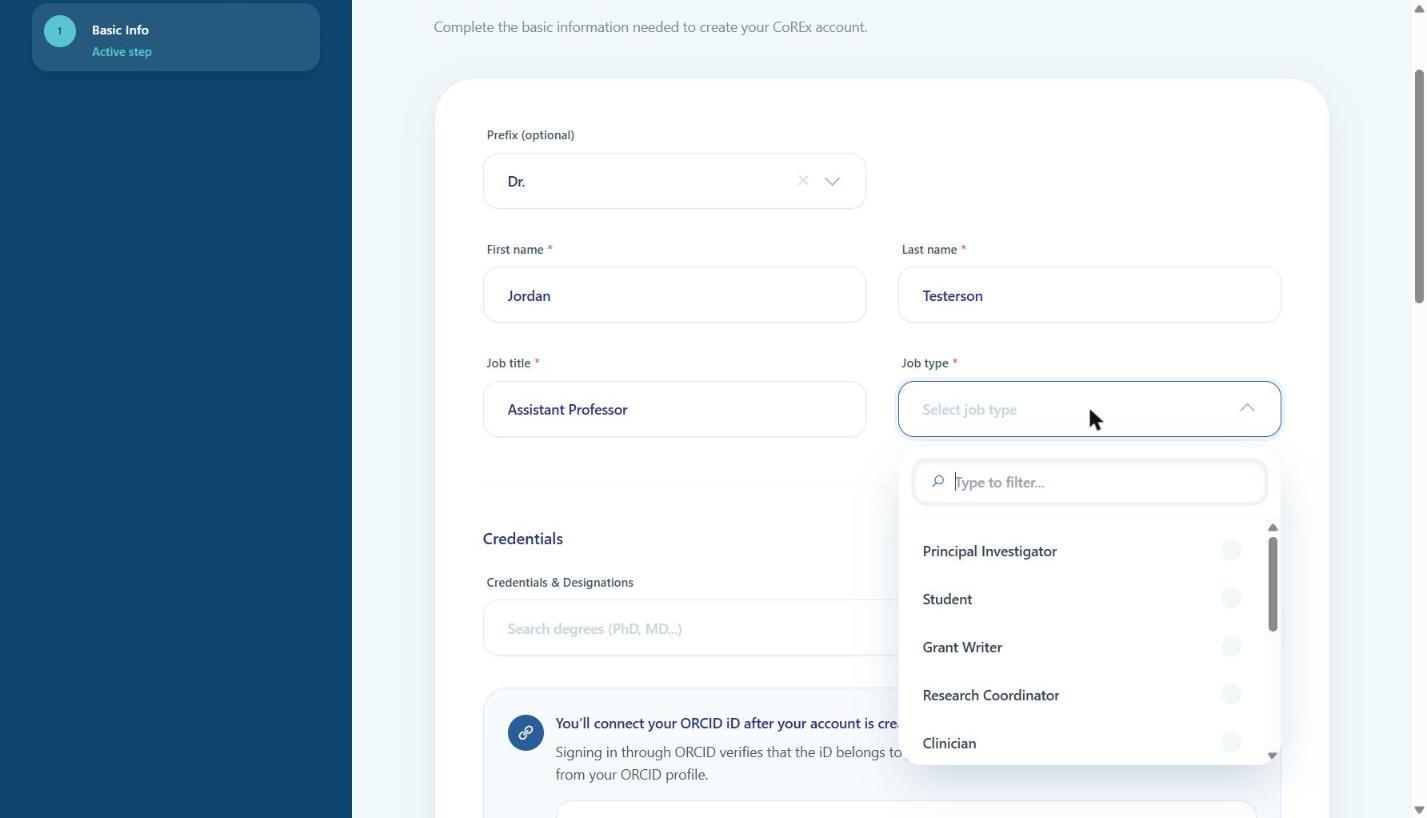
- 4Job type — pick the closest match from the list (Principal Investigator, Clinician, Research Coordinator, Student, Grant Writer, and more). Corex uses this for matching, so choose the role you want to be matched on.
Credentials
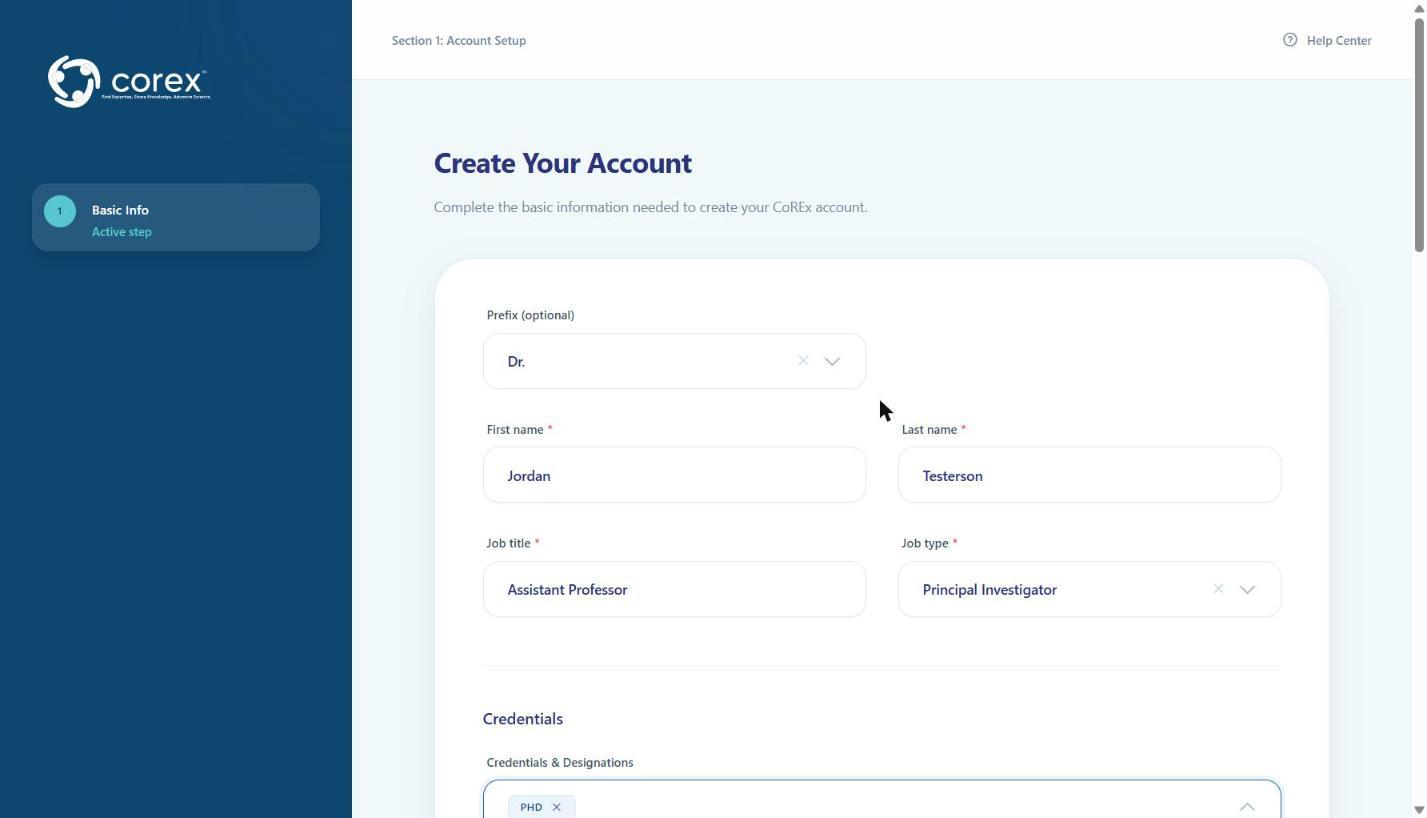
- 1Under Credentials & Designations, type a degree (PhD, MD, RN, MPH…) and select it. You can add as many as apply; each appears as a chip.
Contact & logistics
- 1Email — the address you'll sign in with. Your password-setup link is sent here, so double-check it.
- 2Contact phone — digits only, for example
9195550142. - 3Primary timezone — type part of the name (e.g. Eastern) and select it.
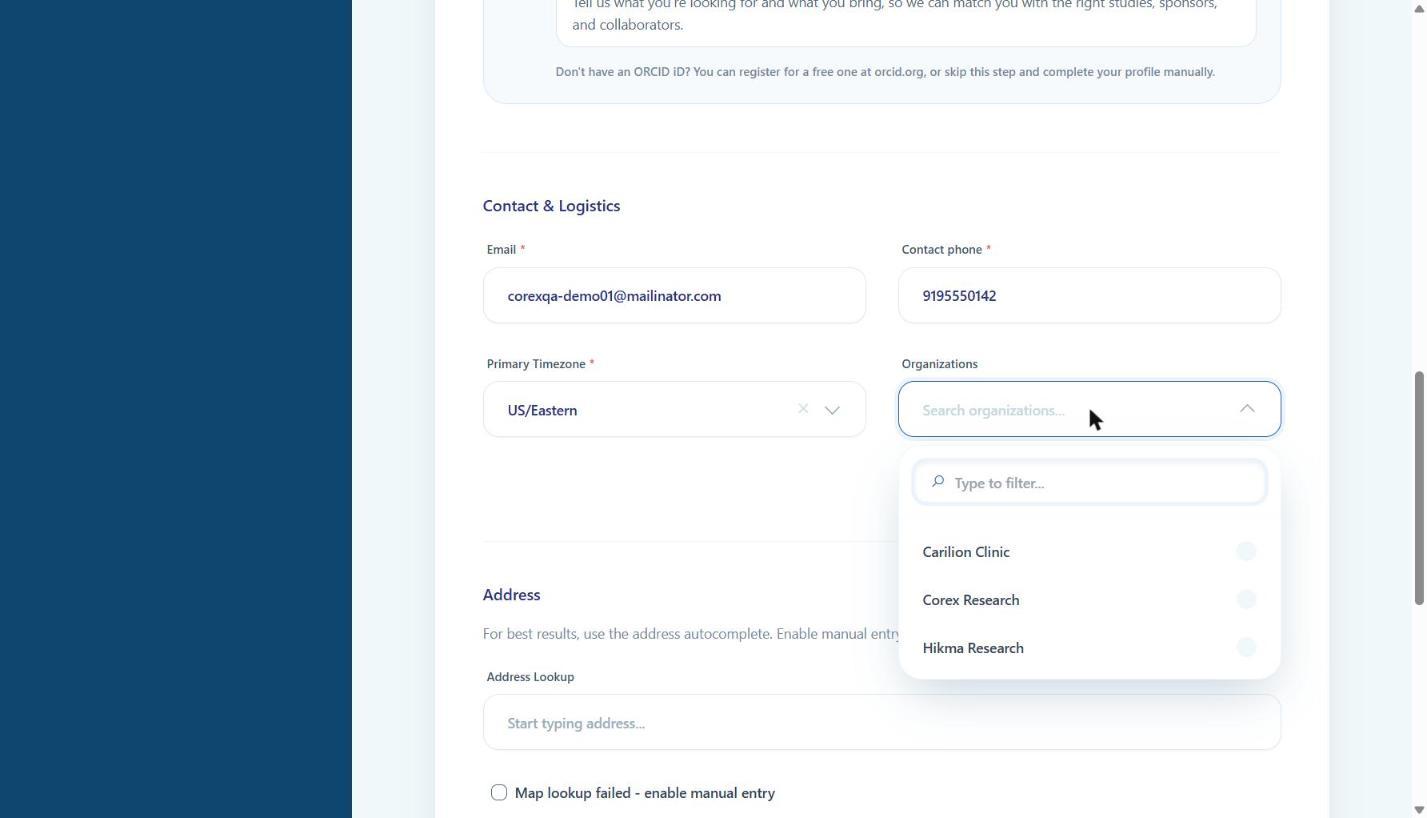
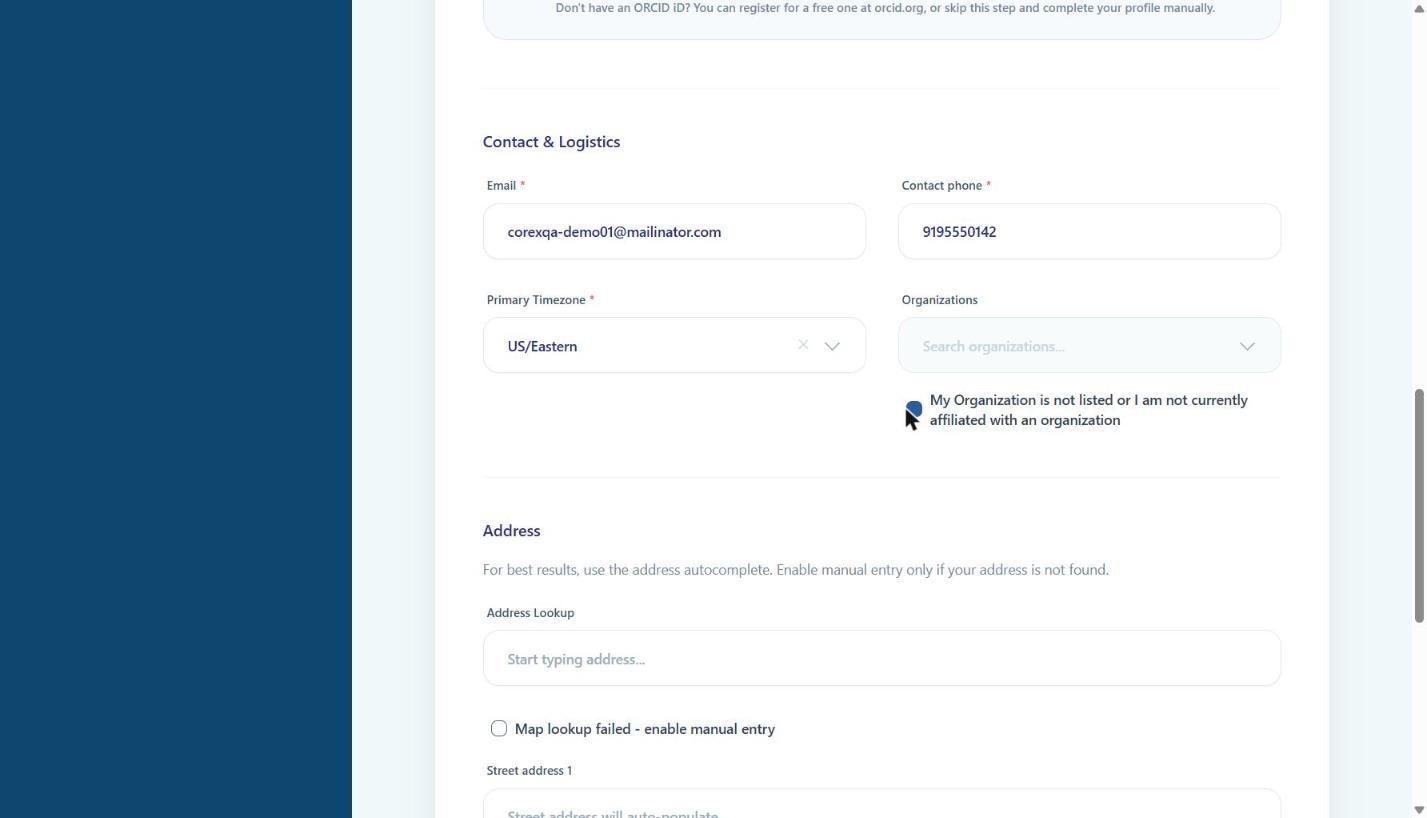
- 4Organizations — open the list and select your institution if it appears. Only organizations that have joined Corex are listed. If yours isn't there, or you aren't affiliated, tick My Organization is not listed or I am not currently affiliated with an organization instead.
Address
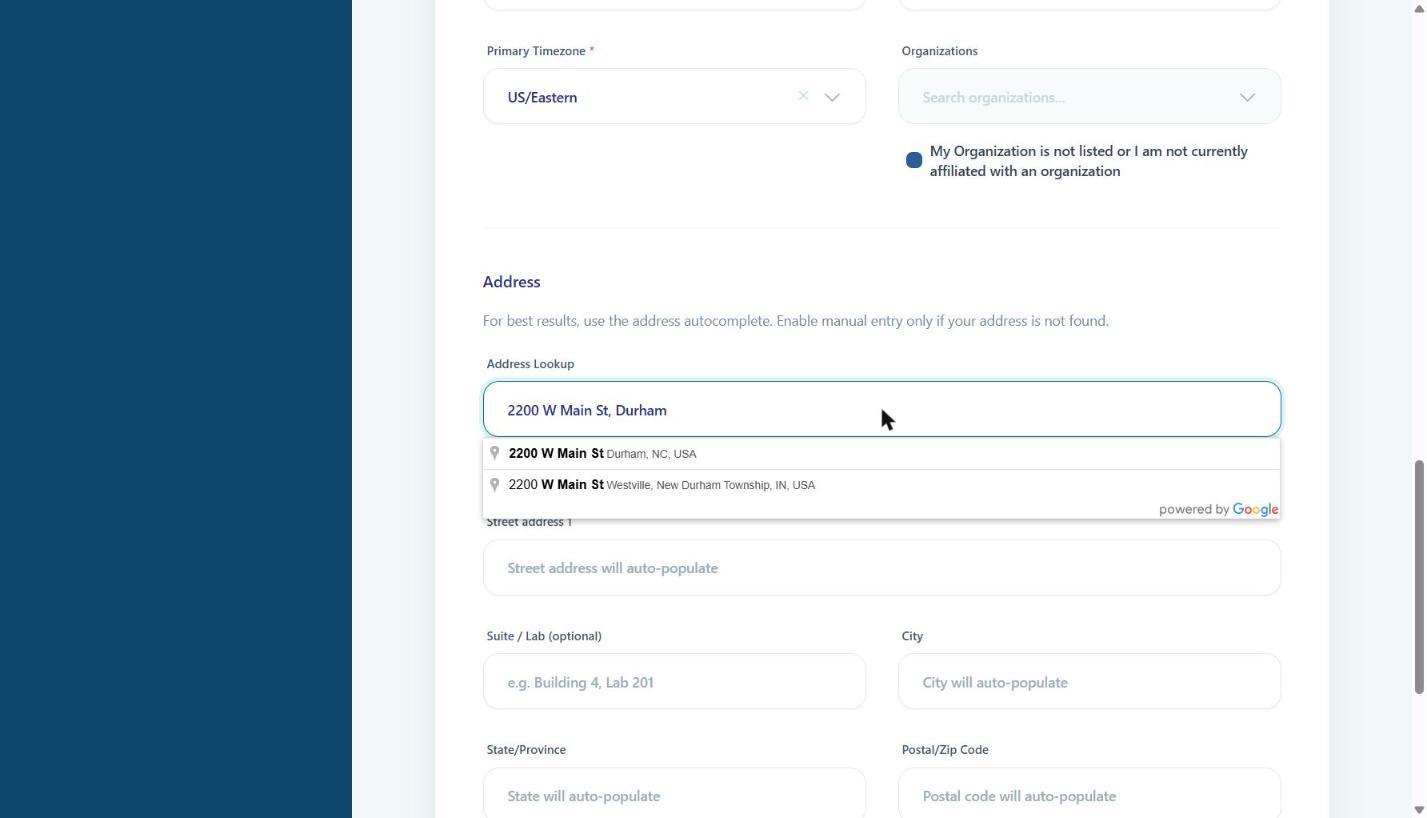
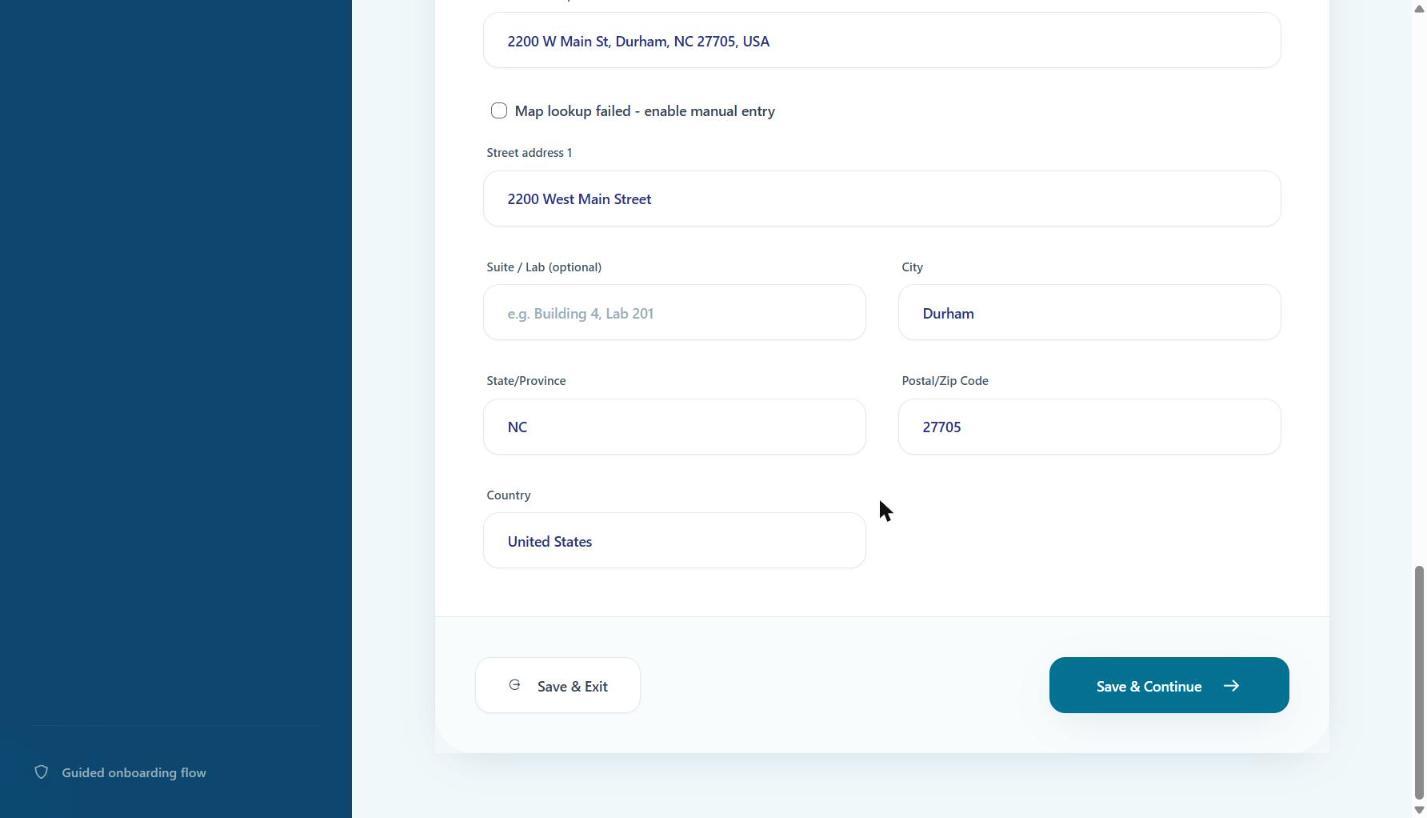
- 1In Address Lookup, start typing your street address and pick the suggestion that matches. Street, city, state, postal code and country fill in automatically.
- 2If your address isn't found, tick Map lookup failed – enable manual entry and type each field yourself.
- 3Add a Suite / Lab if it helps colleagues find you.
Finish
- 1Click Save & Continue. (Save & Exit keeps what you've entered so you can come back later.)